App Accessibility URL
Accessibility in Smart Receipts
Smart Receipts is designed to make receipt scanning, expense editing, reporting, and backup easier to use on iPhone. This page summarizes the accessibility features supported by the app for App Store accessibility information.
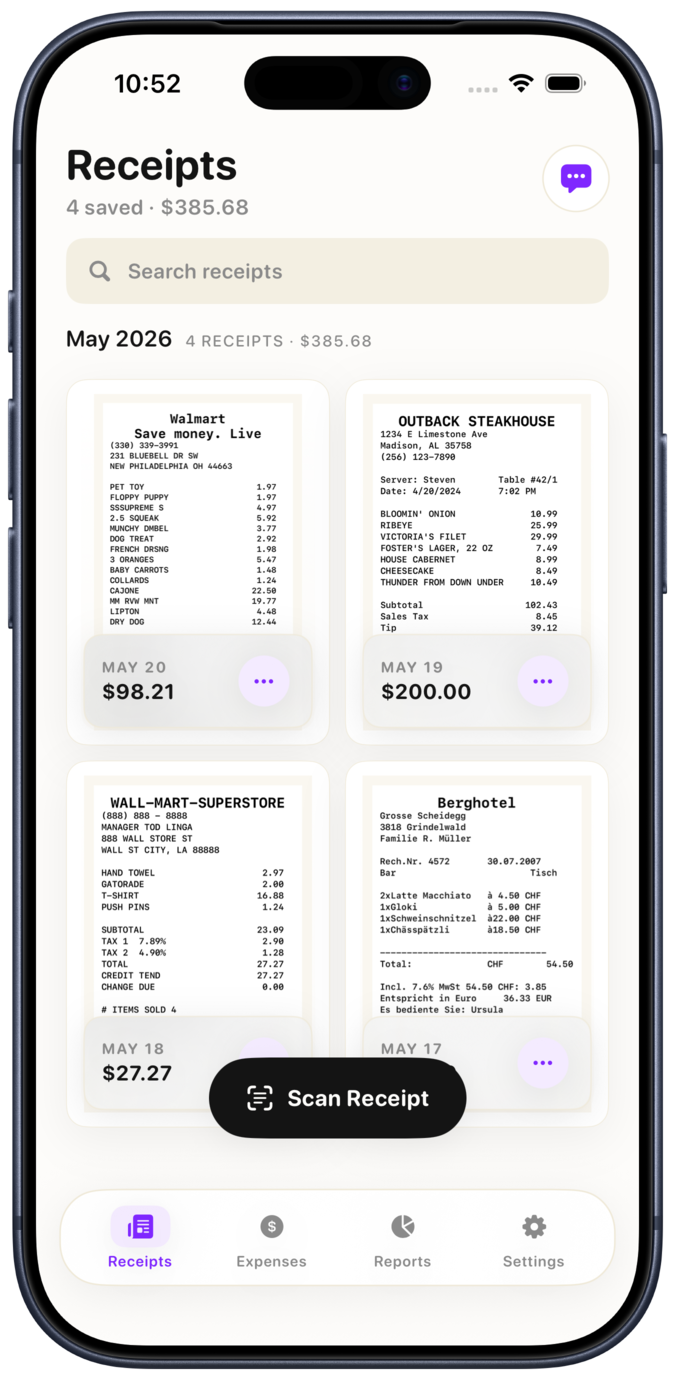
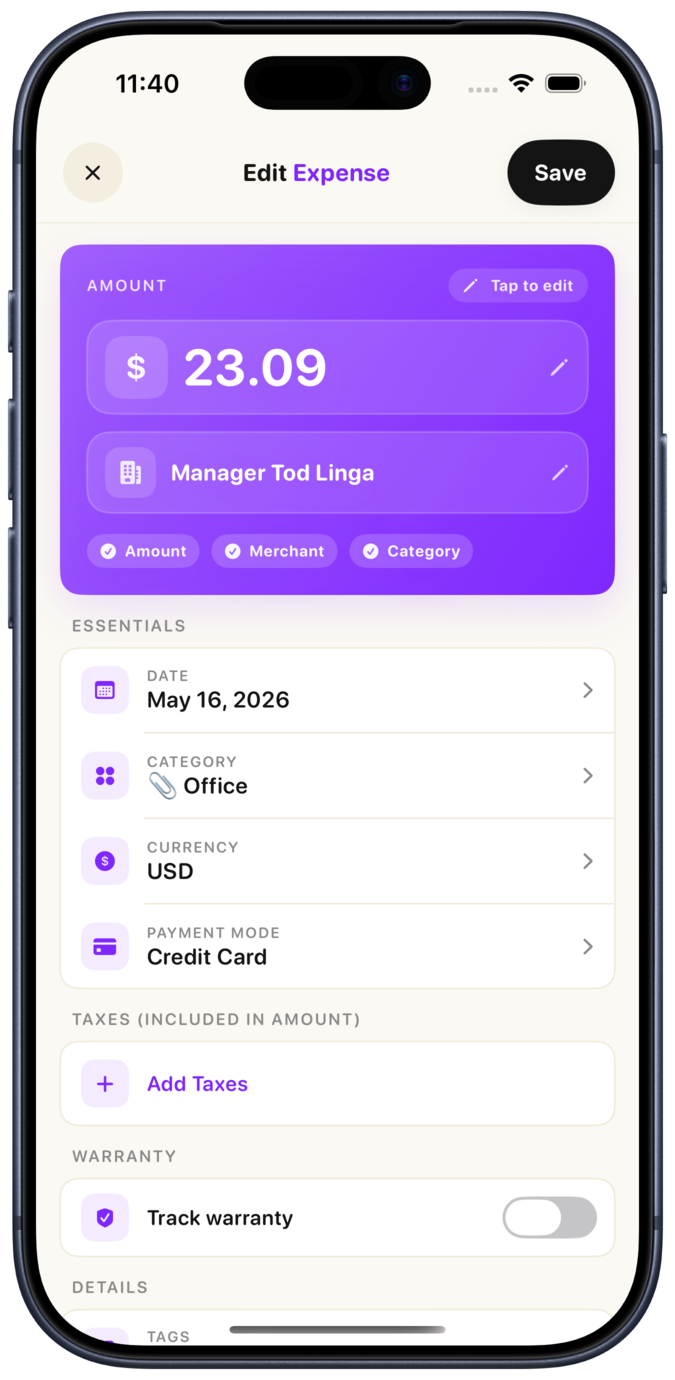
Supported on iPhone
Accessibility features for App Store Connect
For the App Store accessibility checklist, Smart Receipts can be represented with these supported features.
Larger Text
Primary receipt, expense, report, and settings flows use clear text labels and layouts intended to remain readable with larger text settings.
Dark Interface
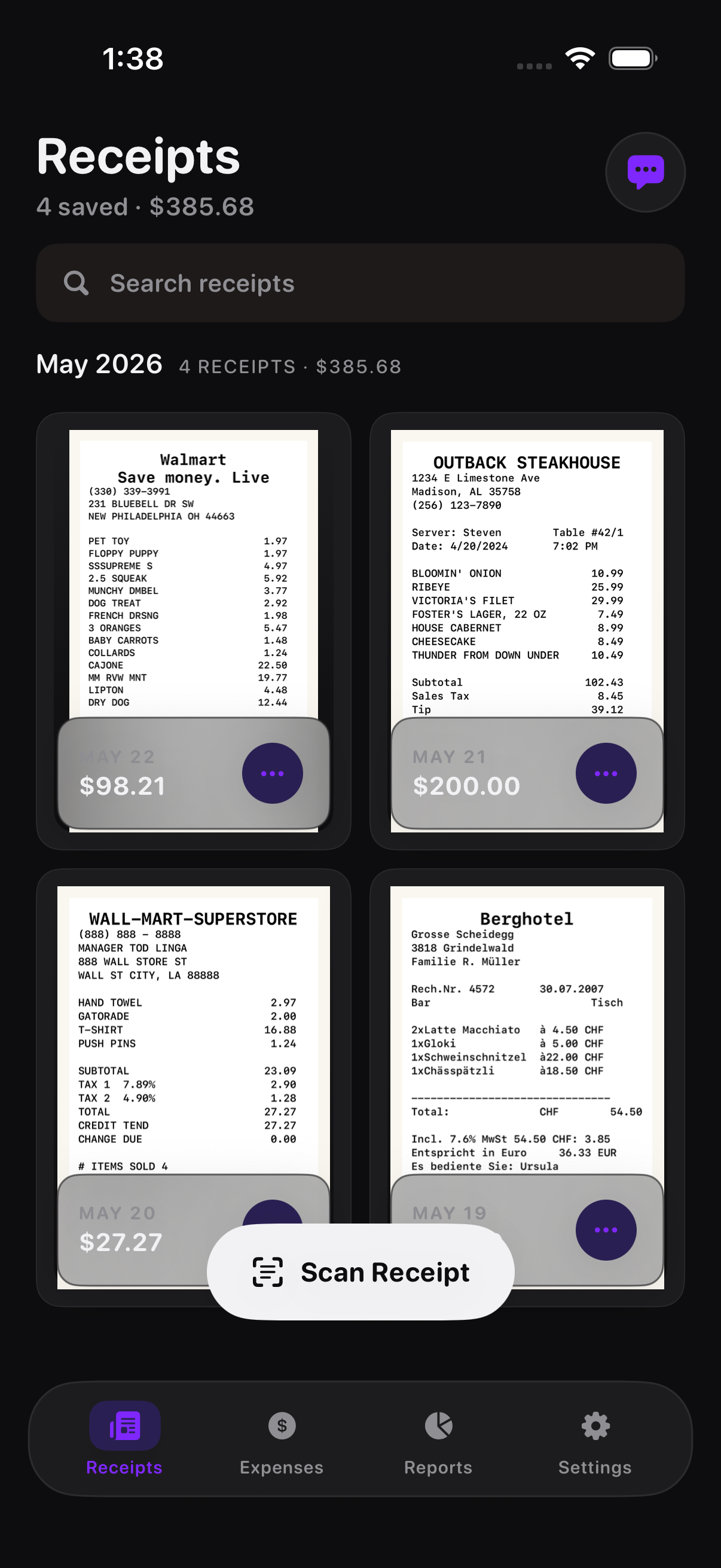
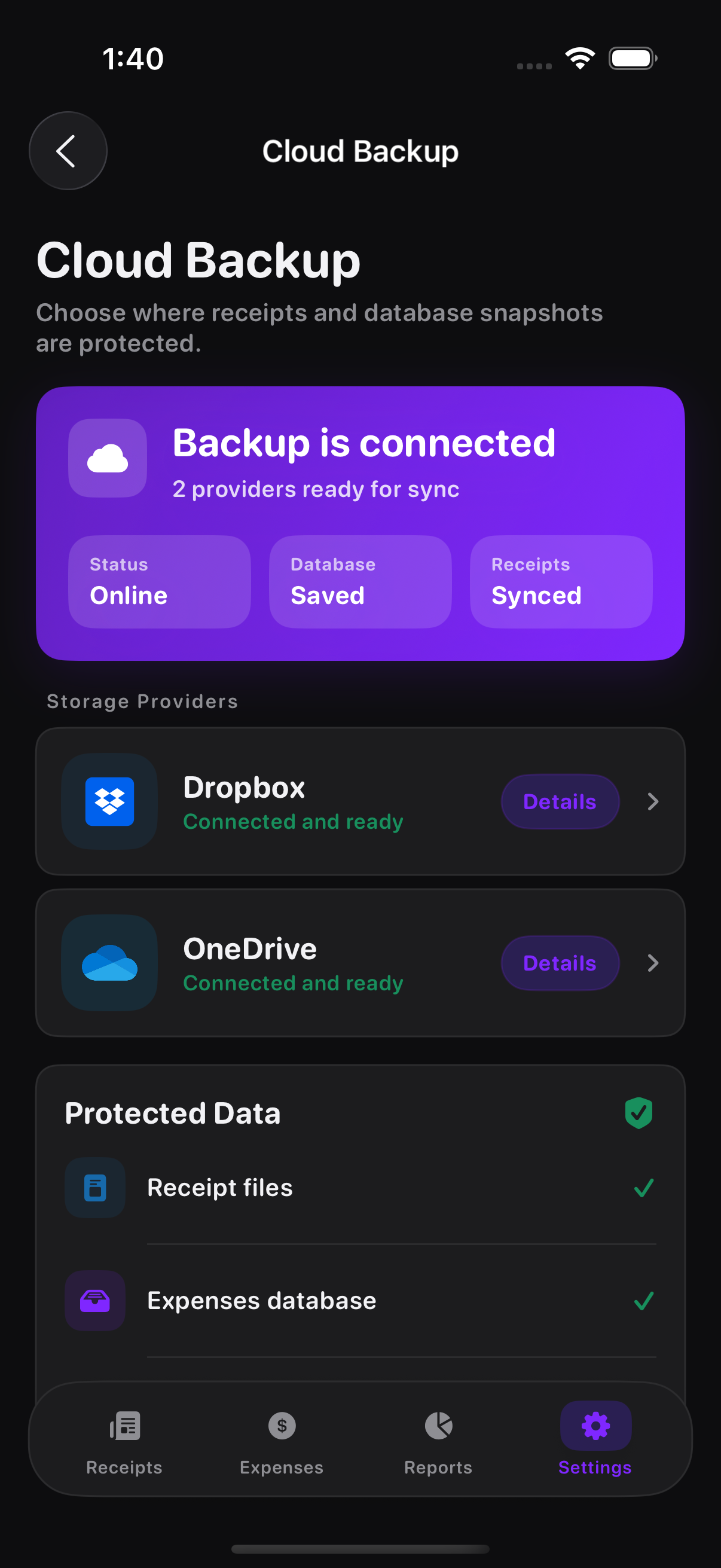
The app supports a dark interface so receipt management remains comfortable in low-light environments.
Differentiate Without Color Alone
Important states use labels, icons, values, and section titles, so users do not need to rely only on color to understand the interface.
Sufficient Contrast
Text, controls, and key totals are presented with clear foreground and background contrast across the main app screens.
Accessibility examples
Dark Interface and Larger Text
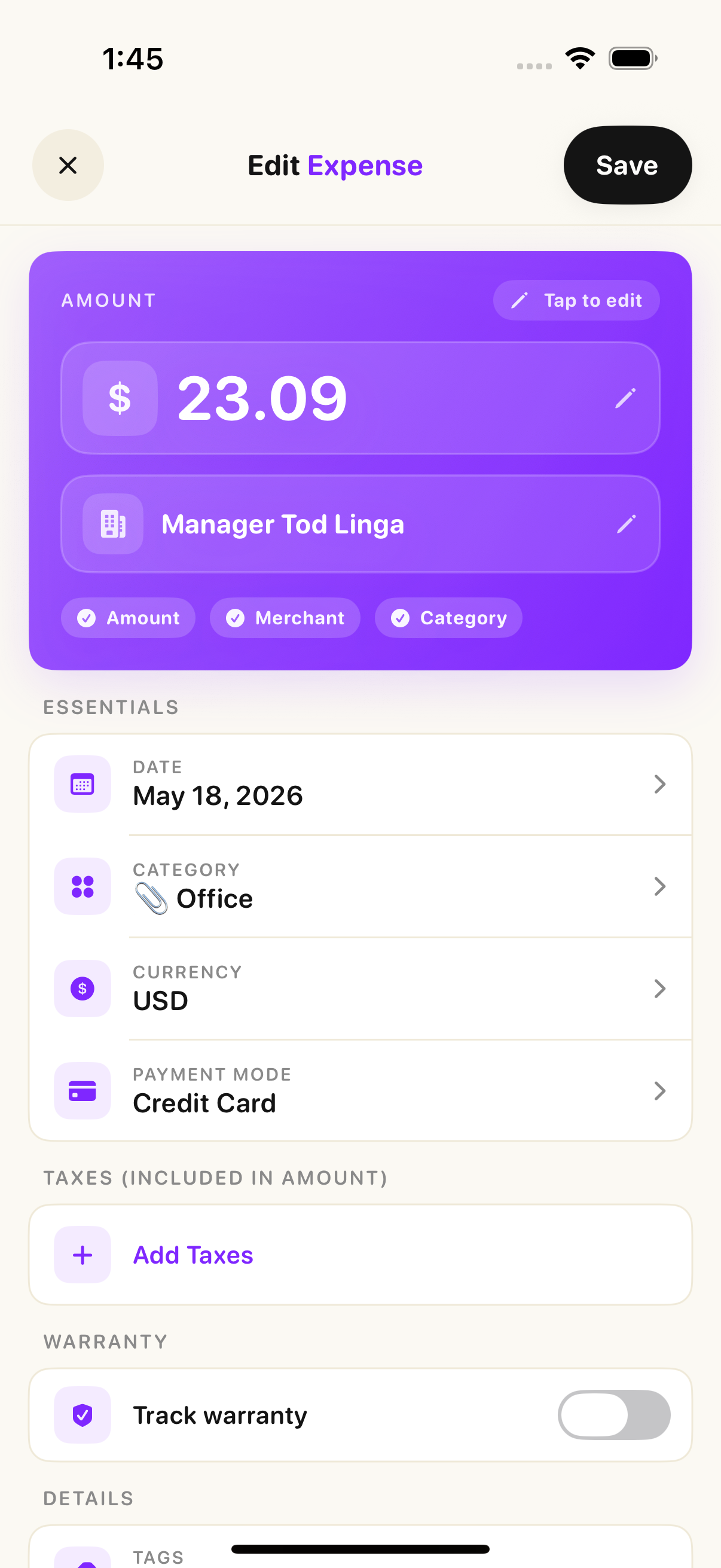
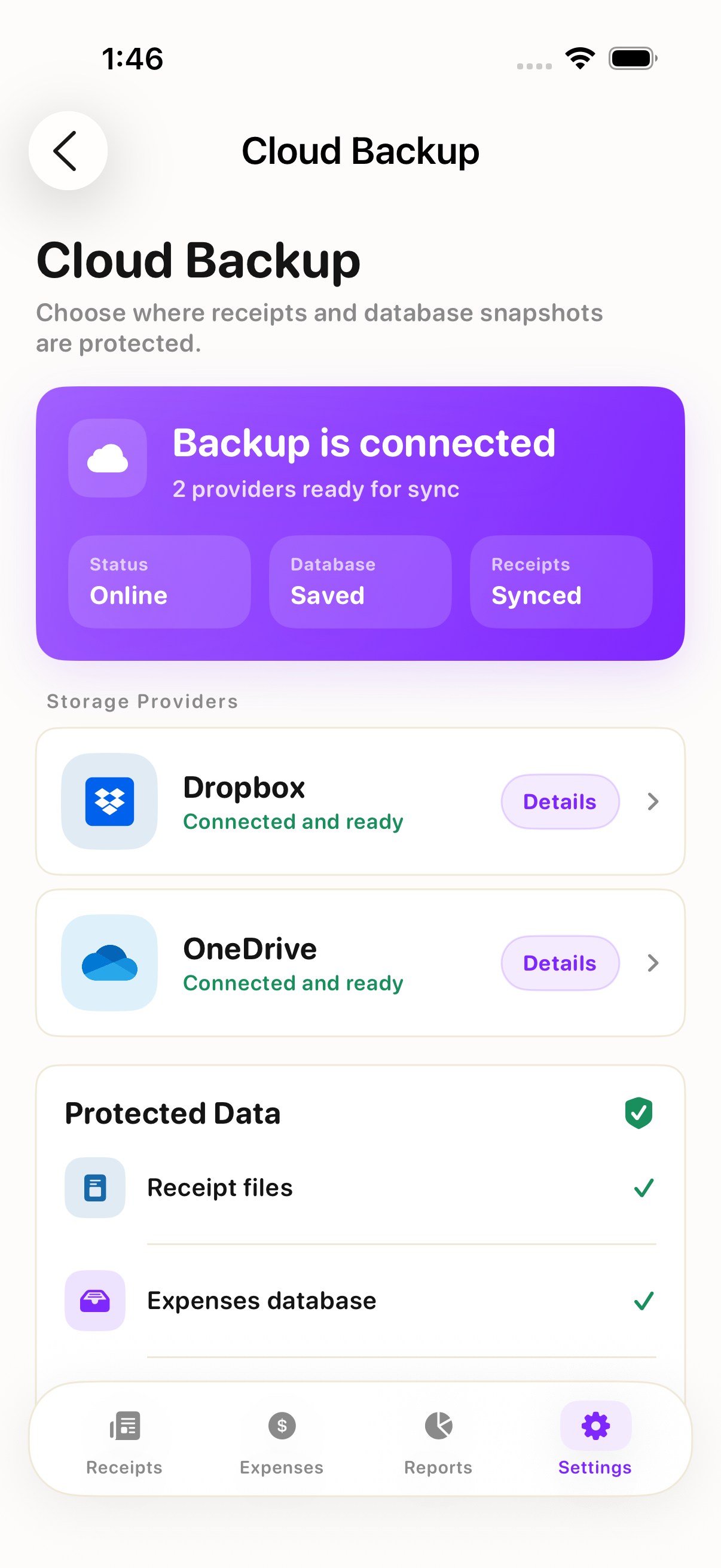
See how Smart Receipts stays readable and comfortable with Dark Interface enabled and Larger Text accessibility settings applied.
App screenshots
Accessible receipt workflows
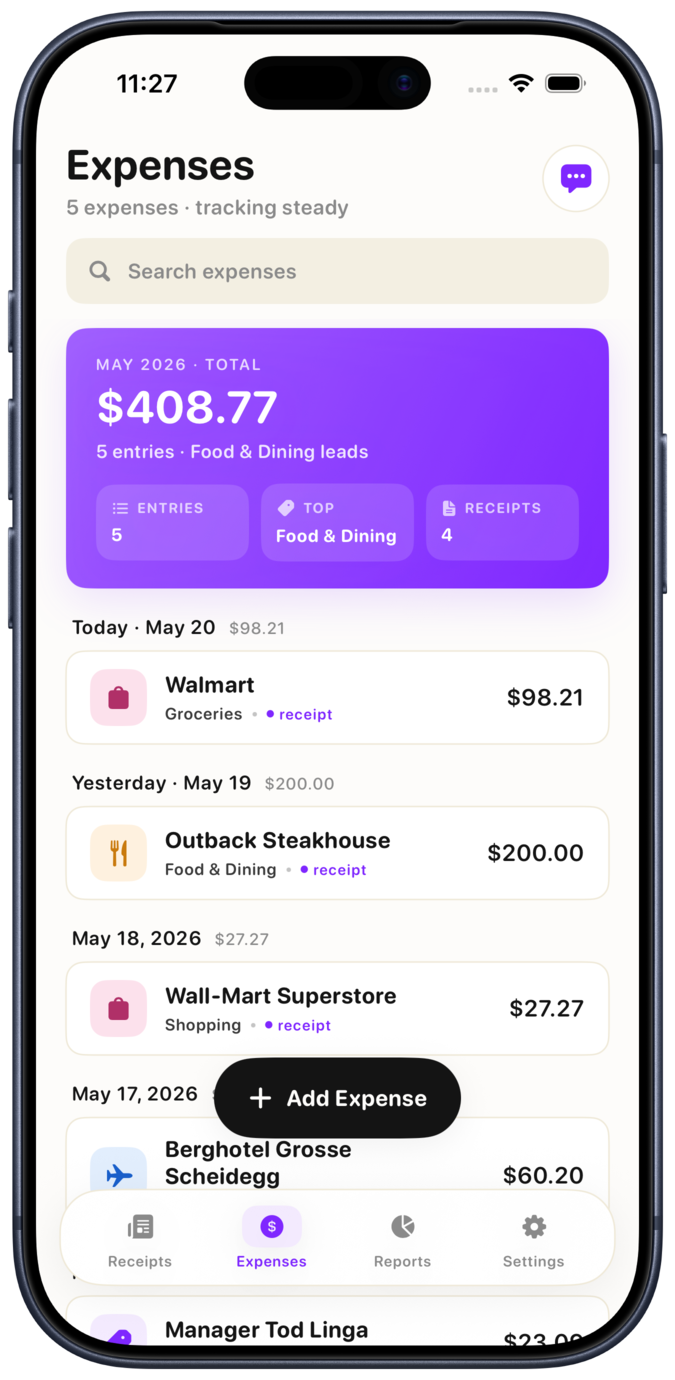
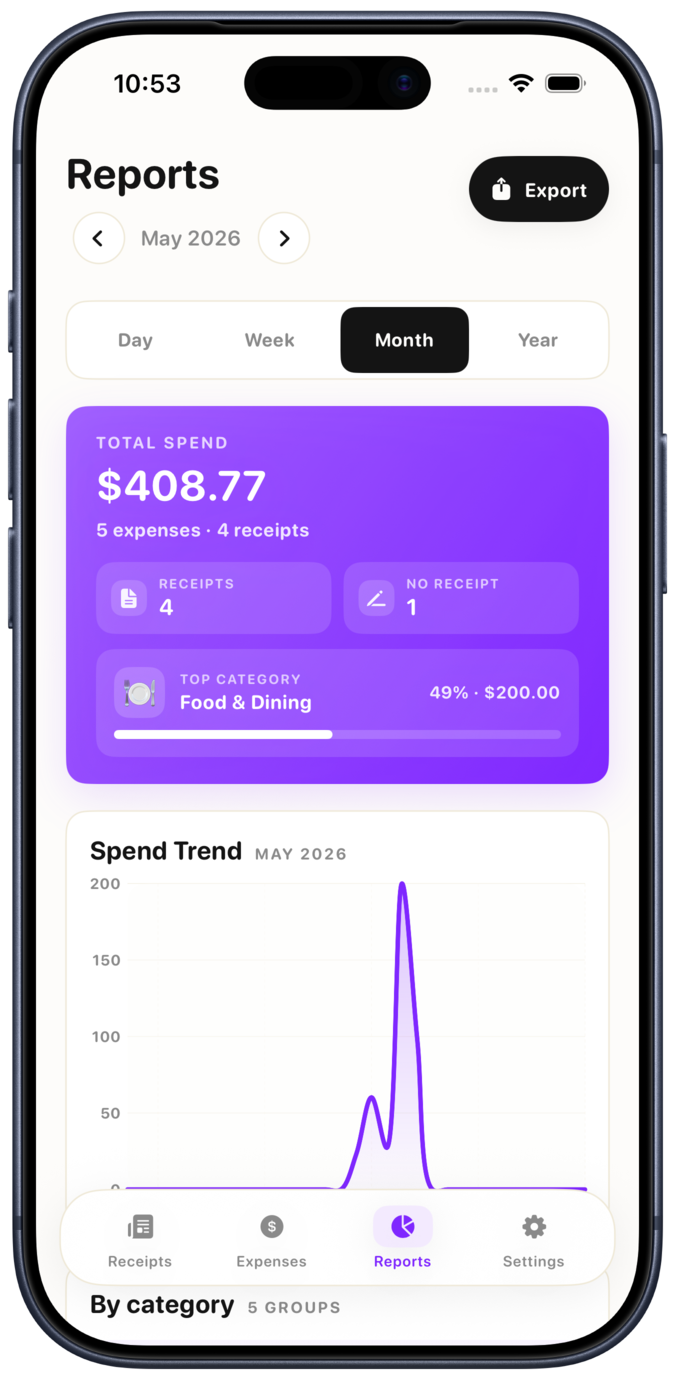
Smart Receipts keeps key workflows text-led, structured, and easy to scan.

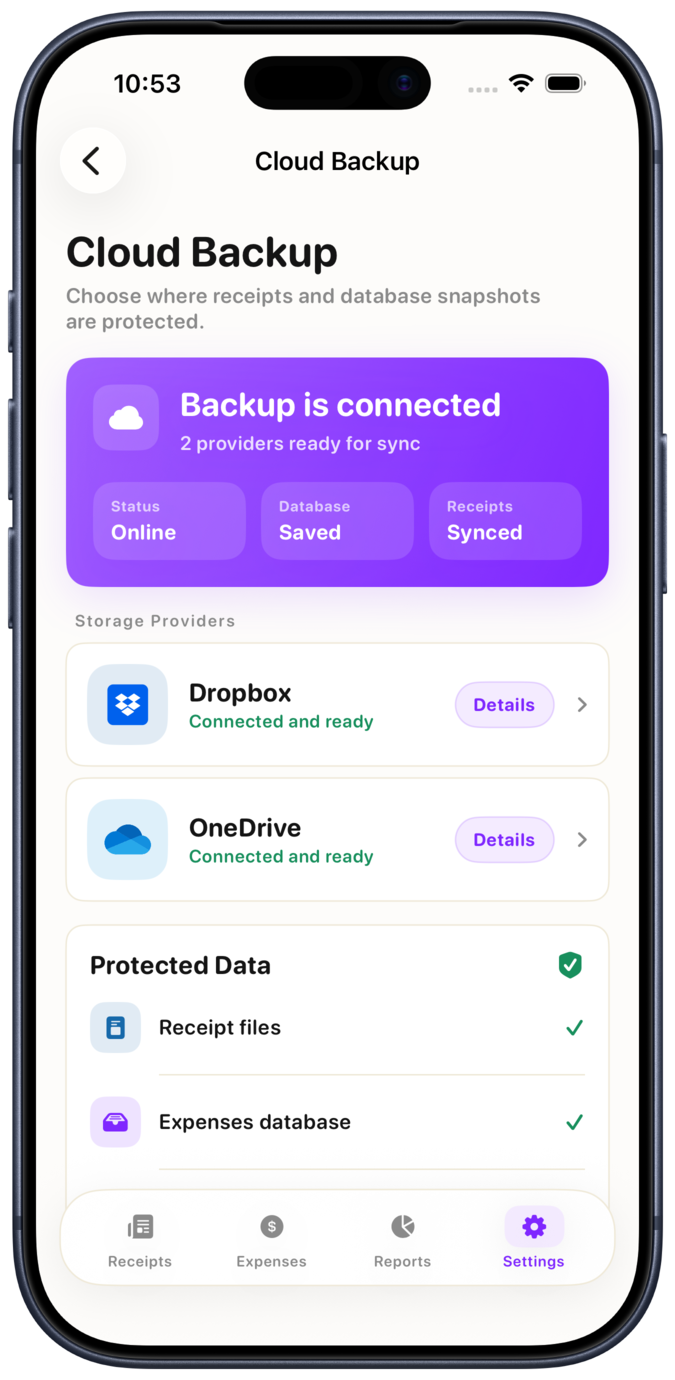
Accessibility coverage
What this means in the app
Text-first forms
Expense editing uses labeled rows for amount, merchant, date, category, currency, payment mode, taxes, warranty, tags, notes, and receipt attachment.
Clear scan and import actions
Receipt capture offers visible camera, photo, file import, retry, and manual-entry choices with clear text labels.
Readable reporting
Reports show total spend, receipt counts, category labels, date ranges, and export controls as text, not only as charts or colored indicators.
Feedback
Help us improve accessibility
If you use assistive technologies or larger accessibility settings and find an issue in Smart Receipts, please contact us so we can improve the app experience.
Contact Support