Siri Shortcuts
Use your voice to manage receipts and expenses
Smart Receipts includes 8 built-in Siri Shortcuts that let you scan receipts, add expenses, check your spending, search through expenses, and export reports — all hands-free. Shortcuts are available automatically when you install the app. No setup needed.
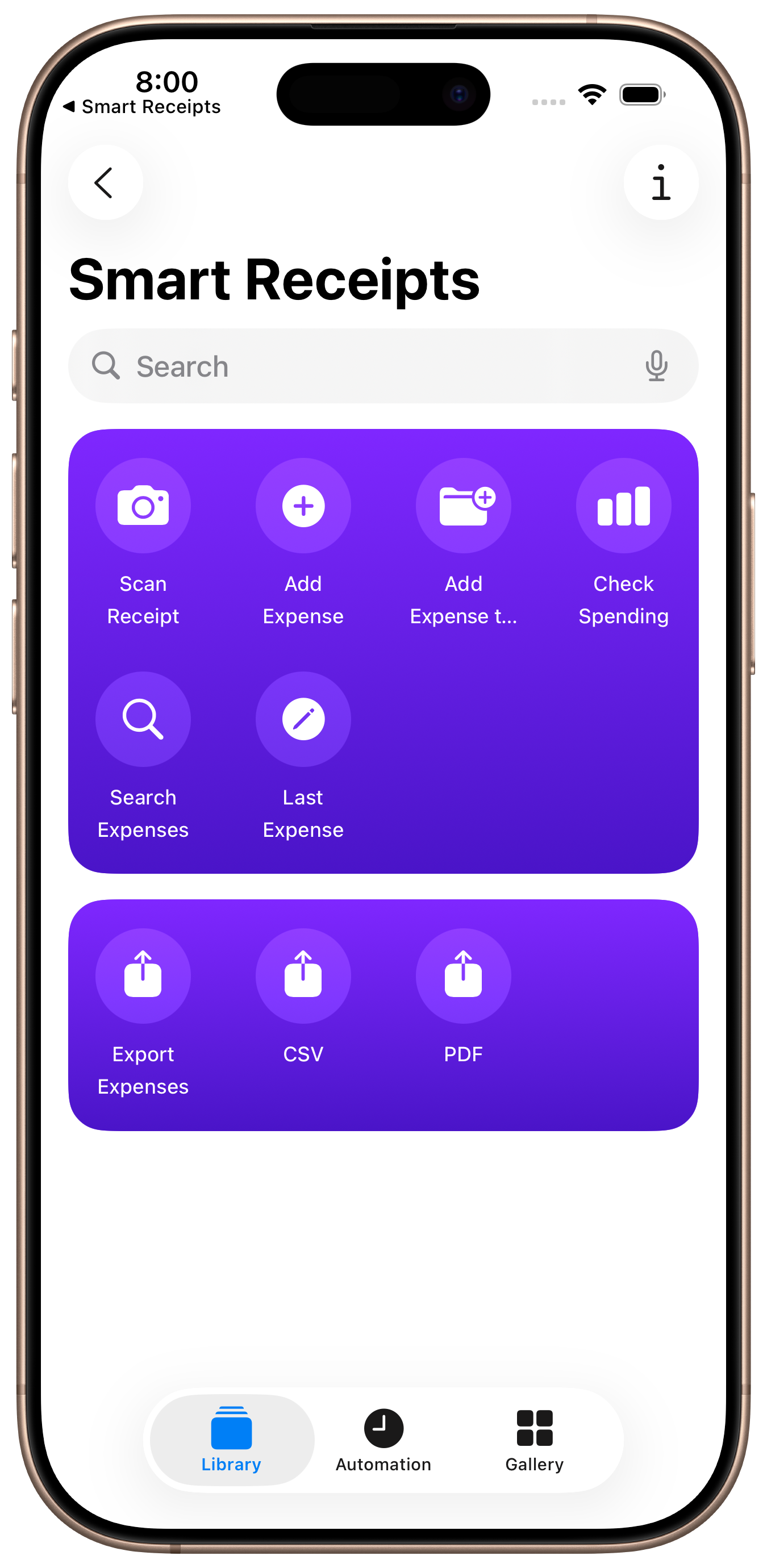
All shortcuts appear automatically in the Shortcuts app
Scan Receipt
Opens the camera to scan a receipt instantly. The AI will auto-extract the merchant, date, total, and tax.
Try saying
Add Expense
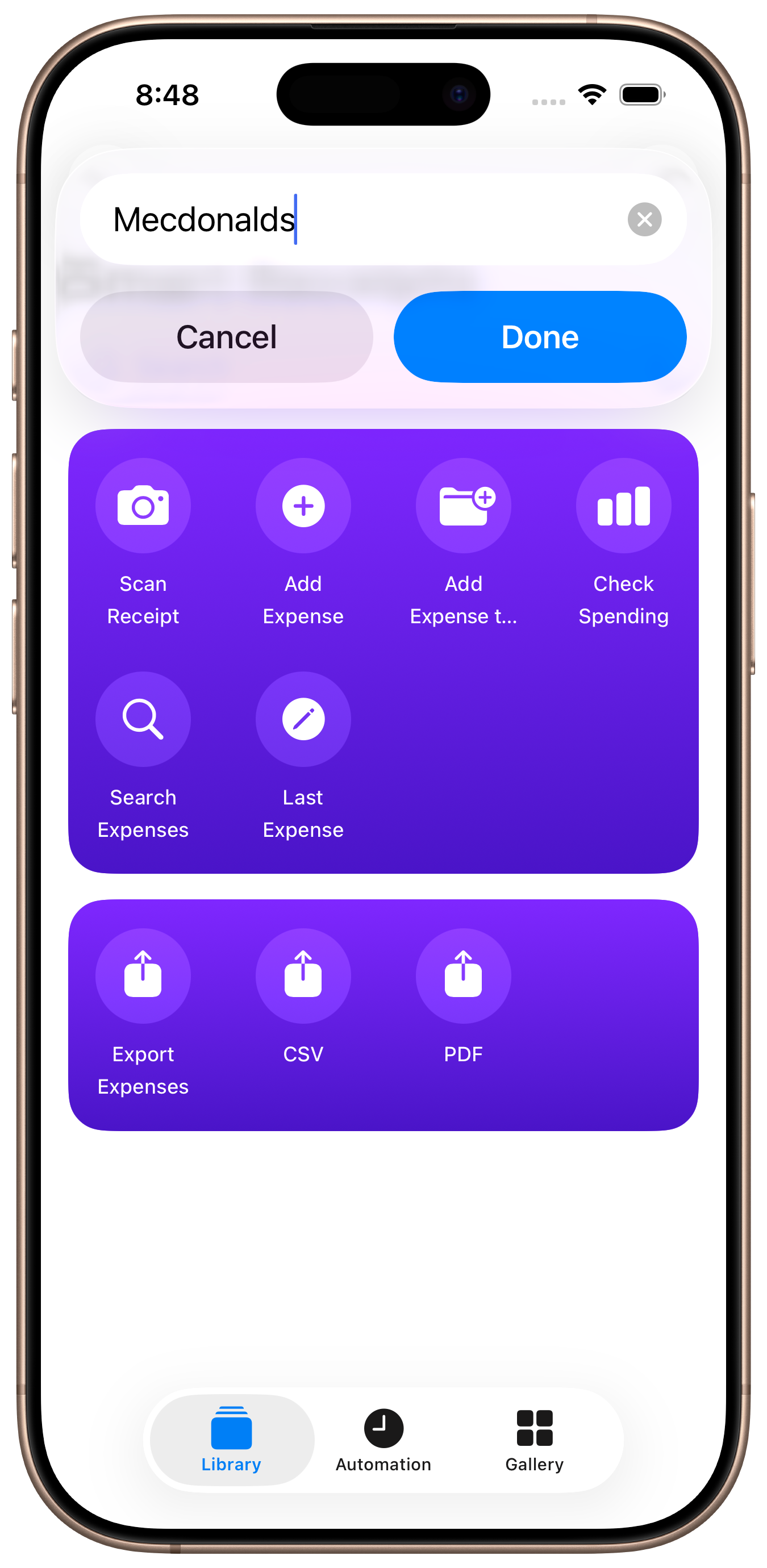
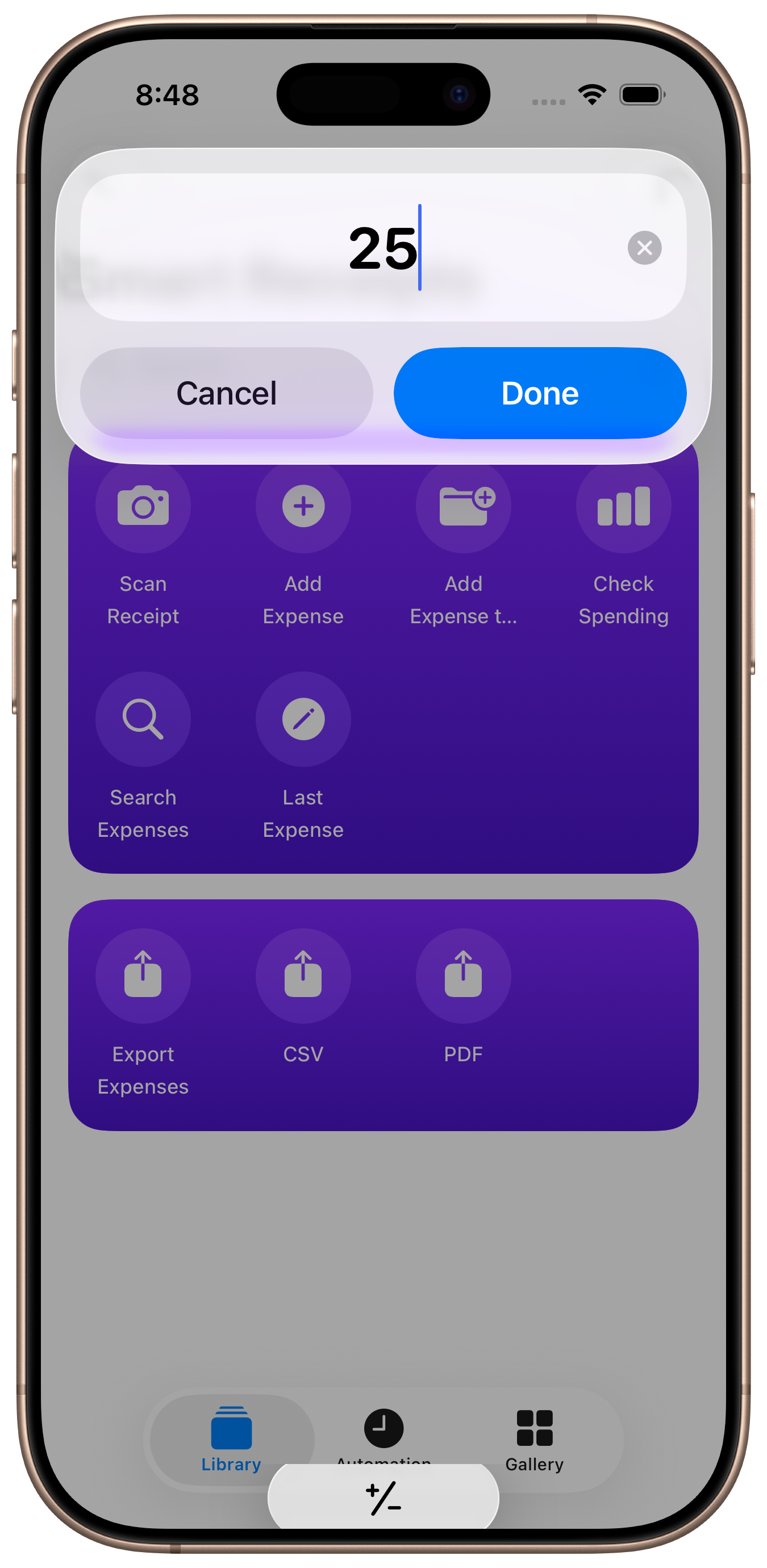
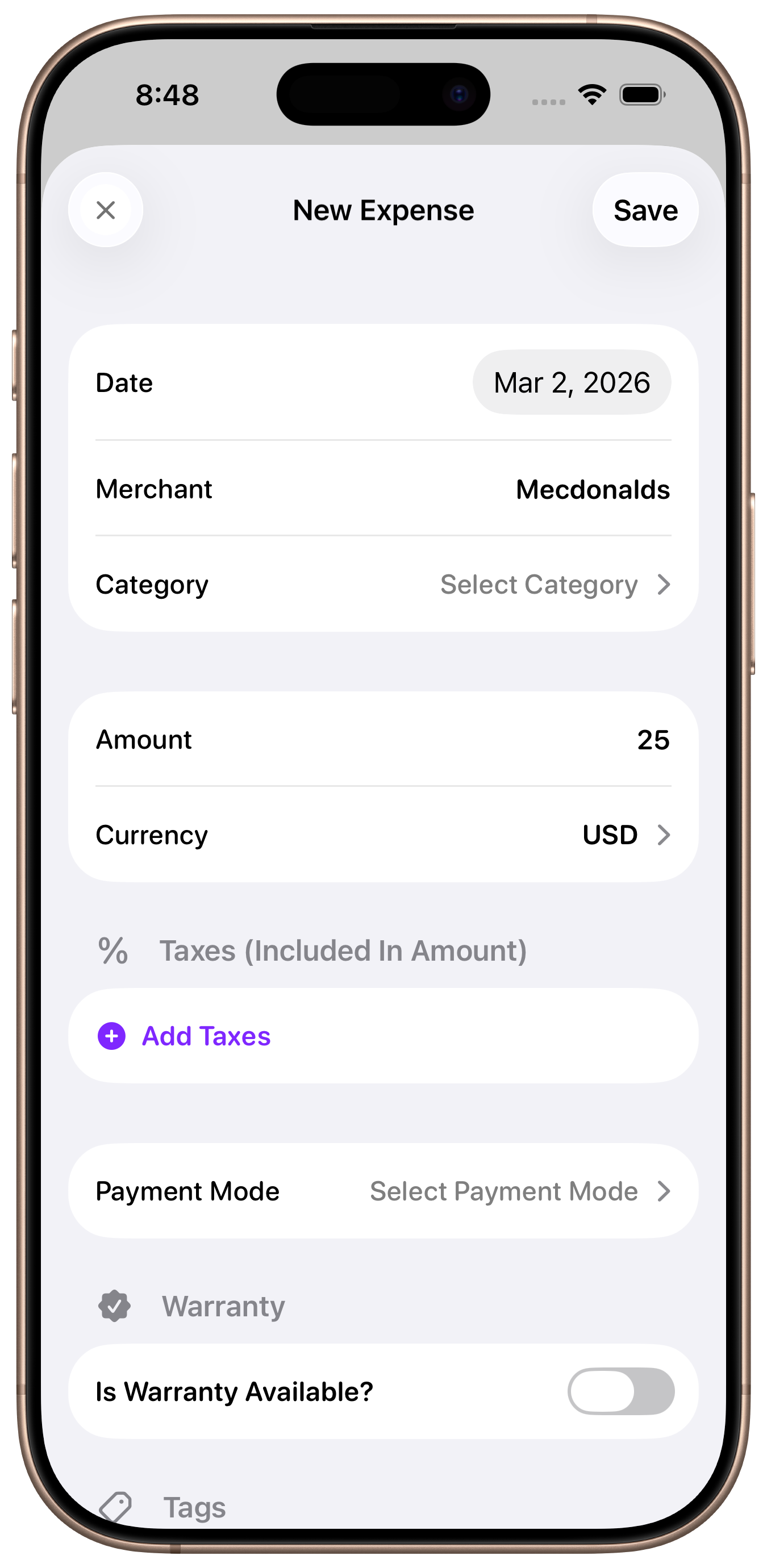
Quickly log an expense with an amount and merchant name. Siri will ask for the details and open the app with everything pre-filled.
Try saying
Add Expense to Category
Add an expense directly to a specific category. Say the category name and Siri picks the right one from your list.
Try saying
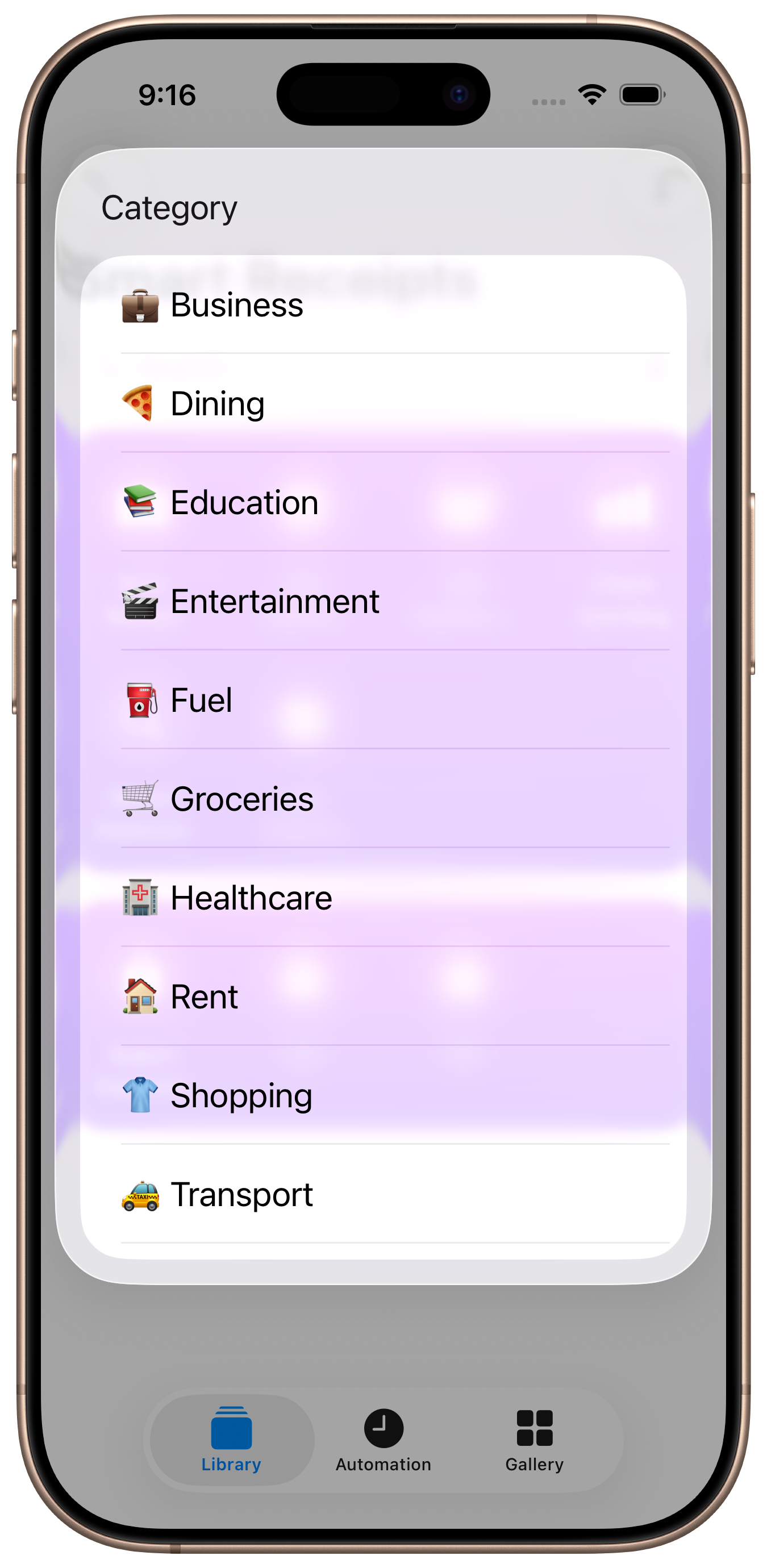
Check Spending
Ask Siri how much you've spent for any time period — today, this week, last month, this year, and more. Returns the total amount and expense count.
Try saying
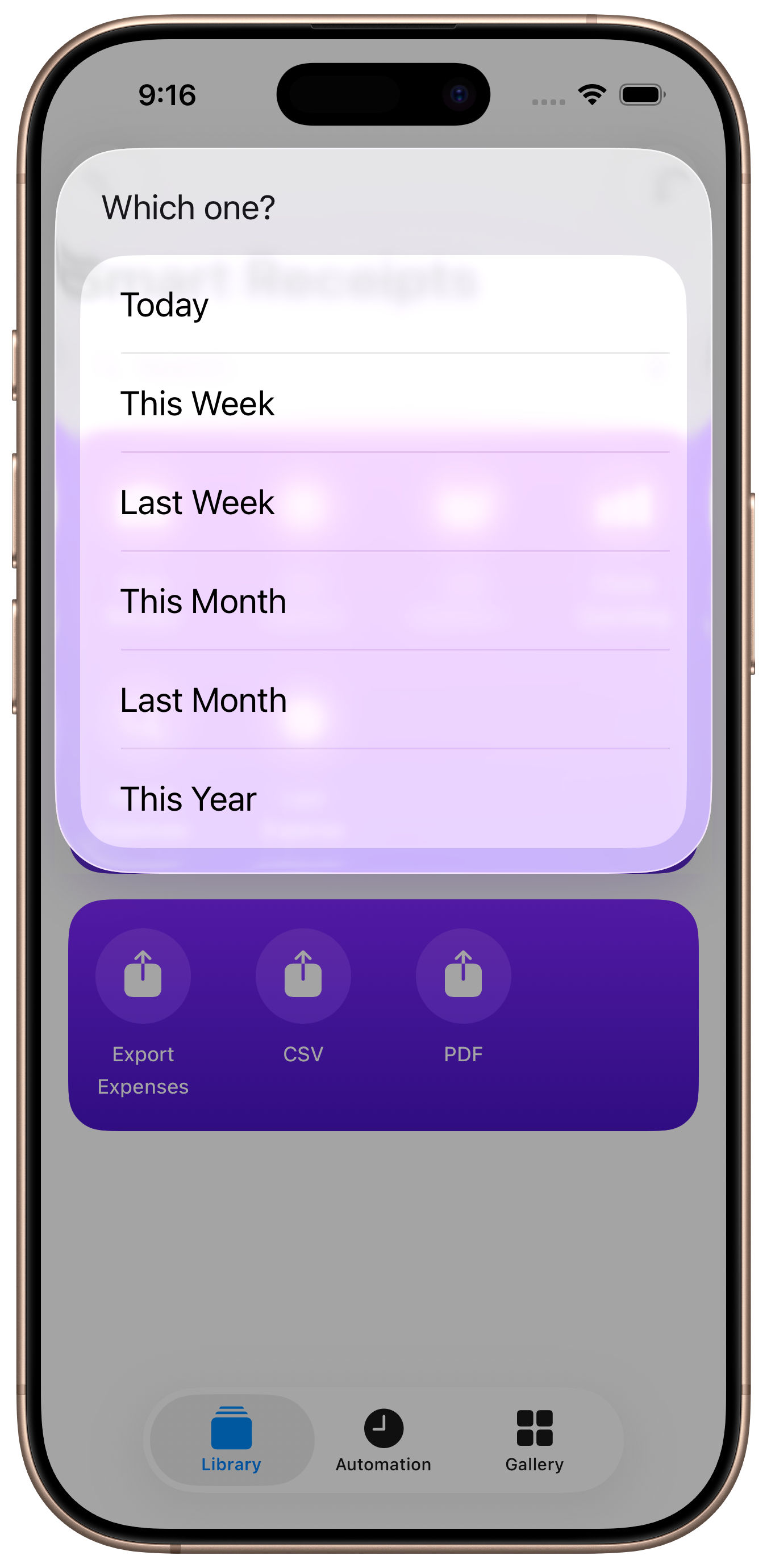
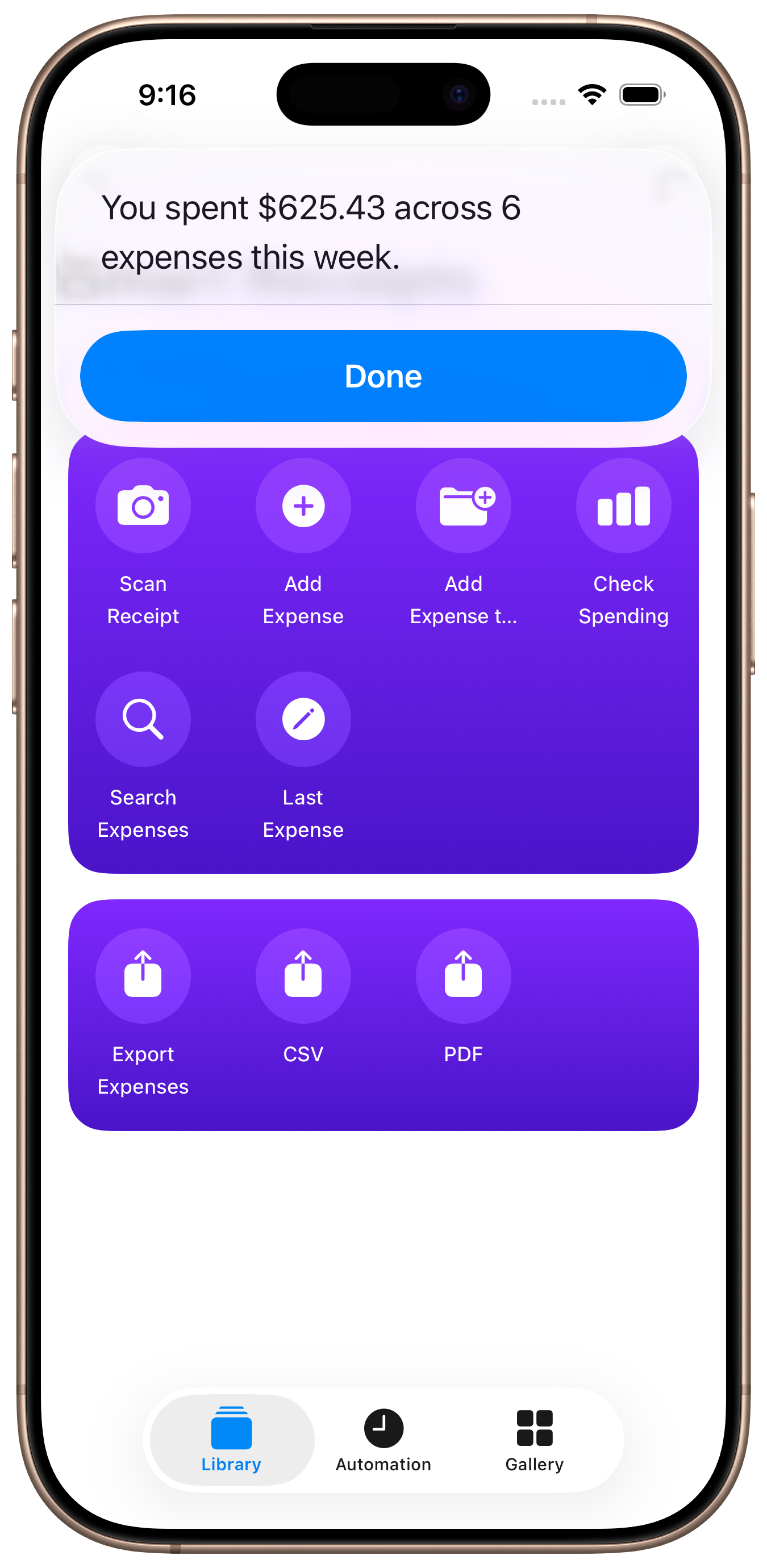
Category Spending
Check how much you spent on a specific category this month. Say the category name and get an instant breakdown.
Try saying
Search Expenses
Search your expenses by merchant name, notes, or receipt text. Siri shows matching results and lets you tap to open one directly in the app.
Try saying
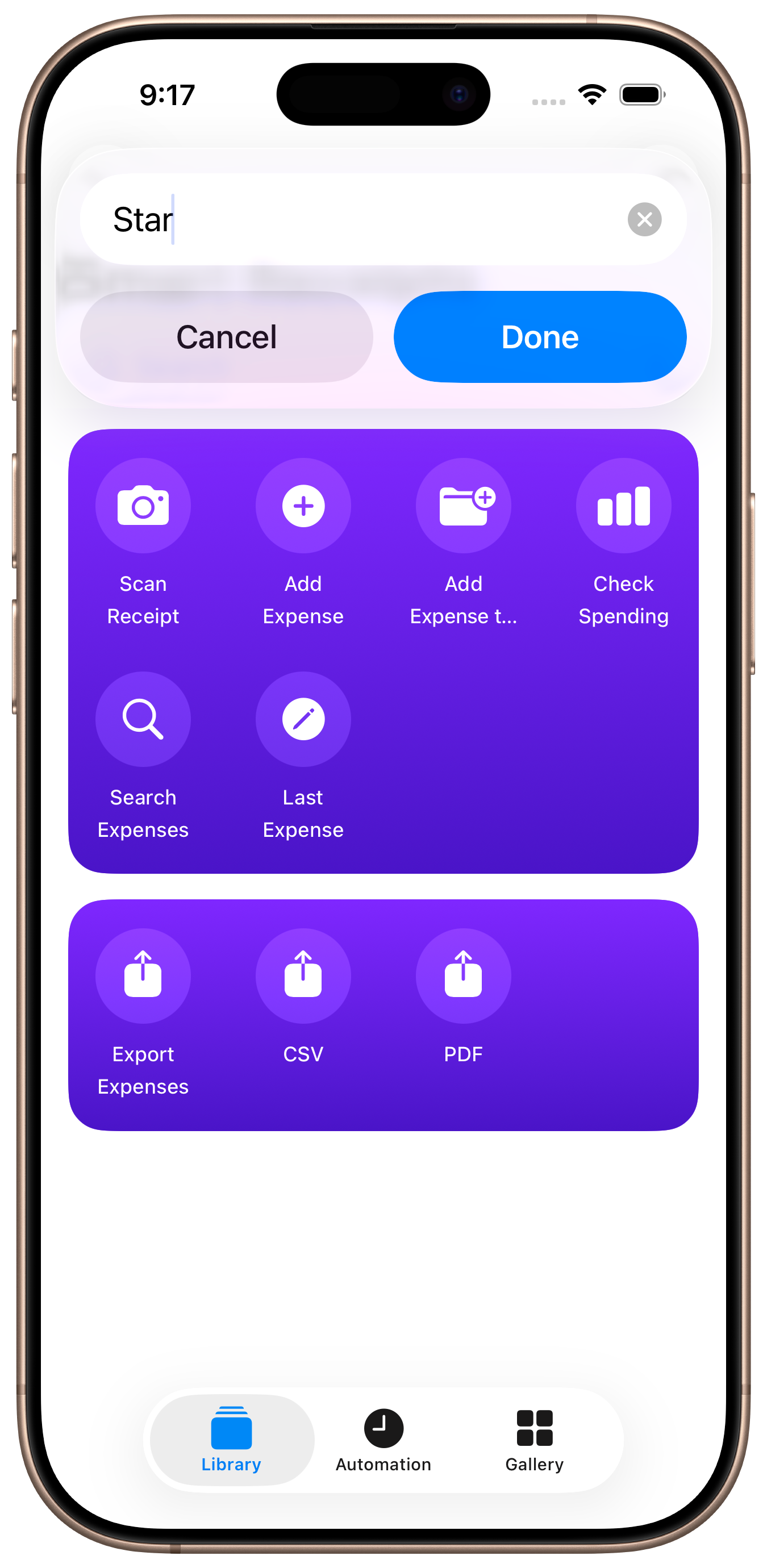
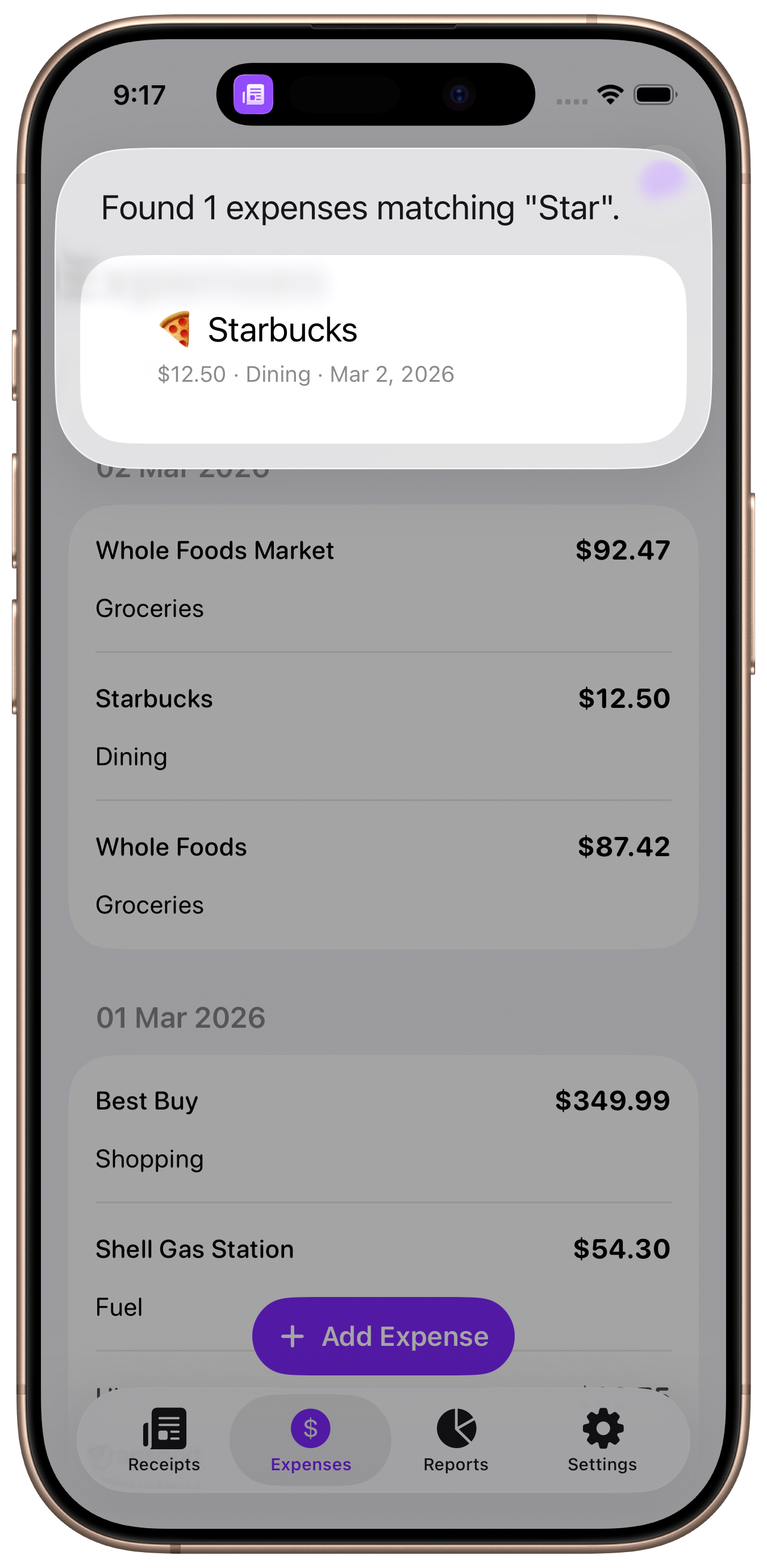
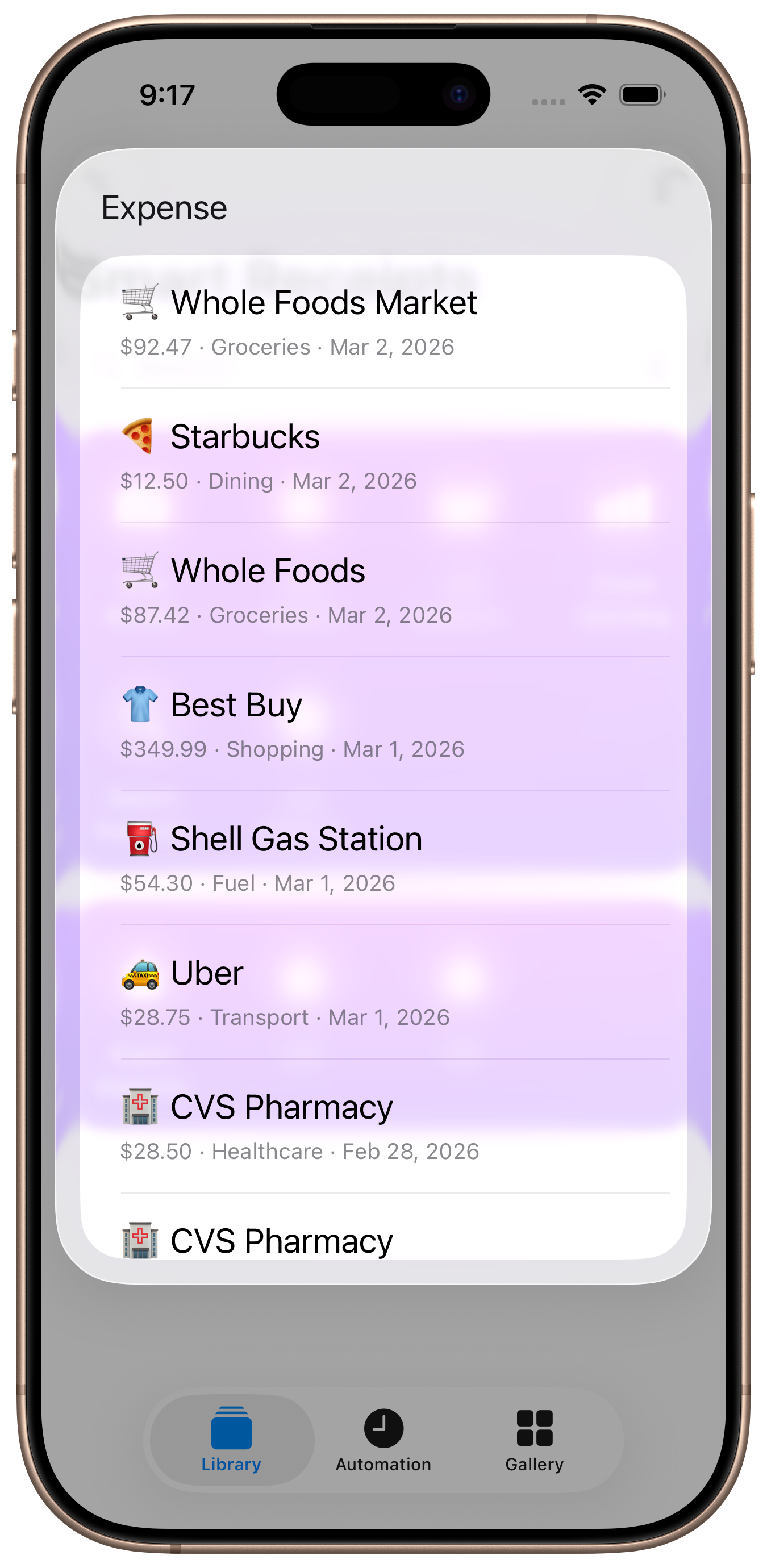
Open Expense
Quickly open any recent expense for editing. Siri shows your latest expenses and opens the selected one directly in the app.
Try saying
Export Expenses
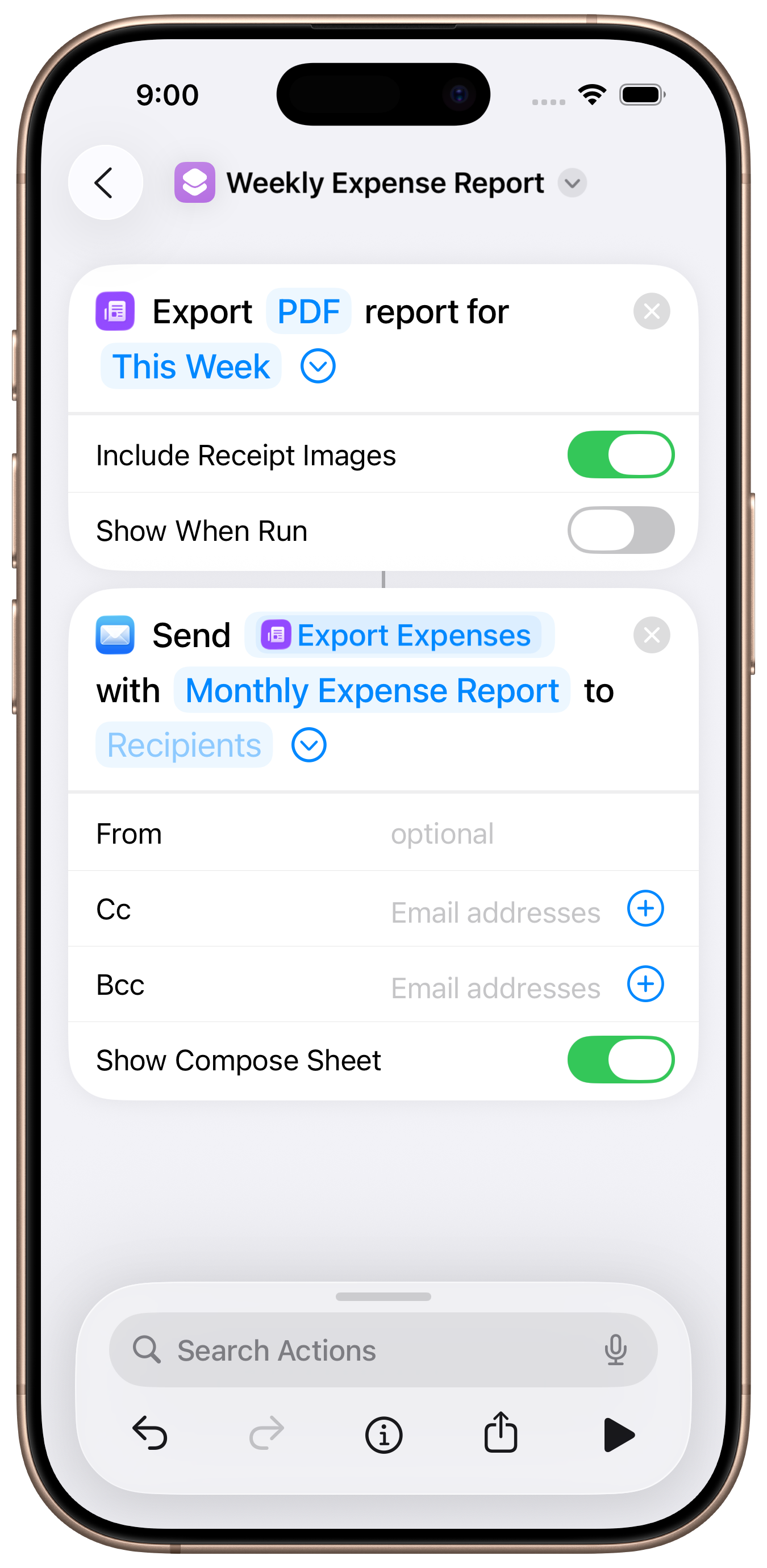
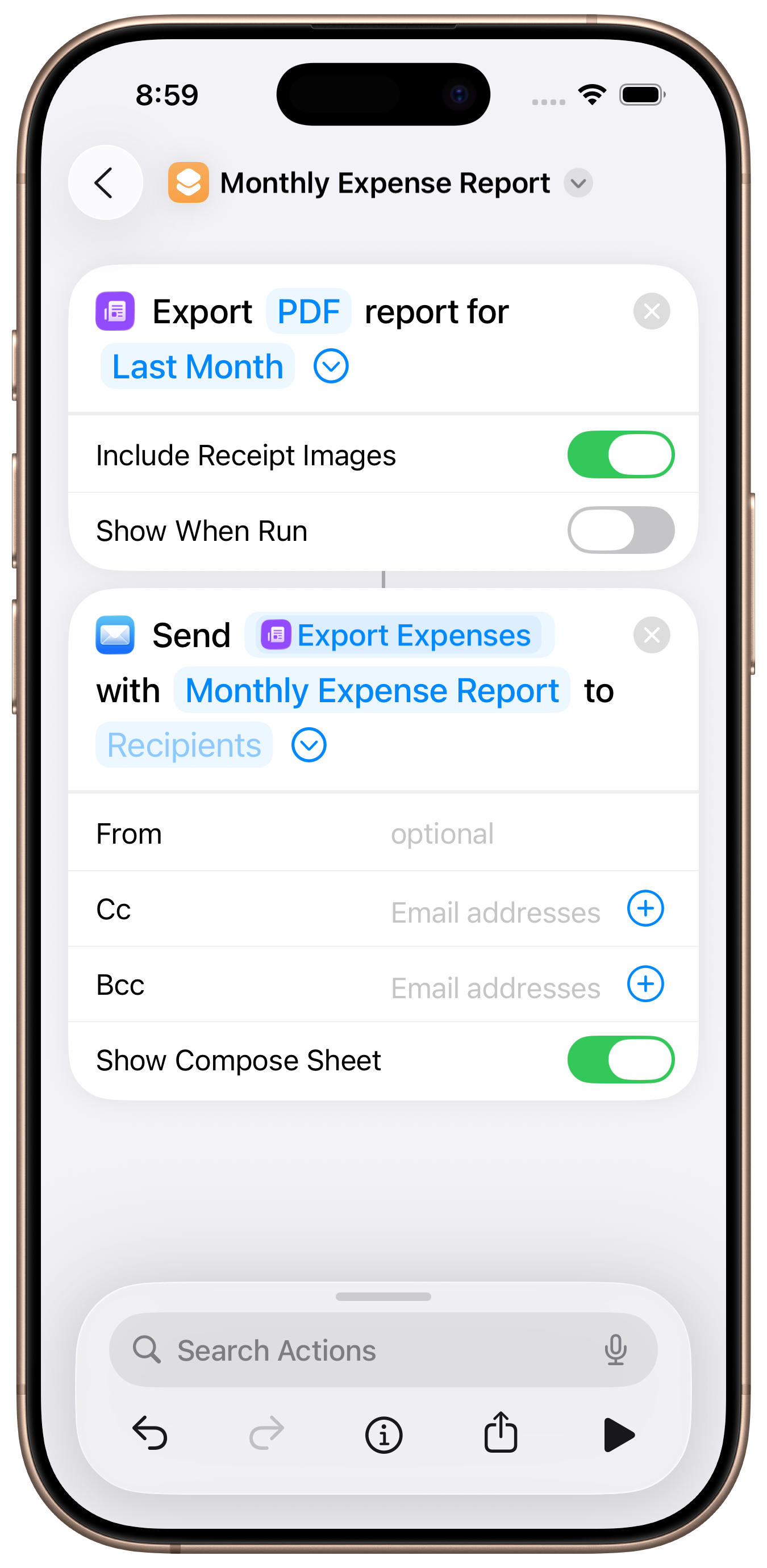
Generate a CSV or PDF expense report via Siri. Choose the format, date range, and whether to include receipt images (PDF only). The file is generated and returned directly — no need to open the app.
Try saying
Getting Started
All shortcuts are available automatically — no setup needed. Just make sure Siri is enabled on your device.
Install the App
Download Smart Receipts from the App Store and open it once.
Open Shortcuts App
Go to the Shortcuts app on your iPhone. Smart Receipts shortcuts appear automatically.
Use Your Voice
Say "Hey Siri" followed by any of the phrases listed above. Done!
Customize
Tap any shortcut in the Shortcuts app to customize parameters, add to Home Screen, or create automations.
Ready to go hands-free?
Download Smart Receipts and start using Siri to manage your expenses.
Download Smart ReceiptsAvailable on the App Store.